L'apparence de votre site
Les langues du site
Choisir la langue par défaut et les langues dans lesquelles votre site est disponible.
Dans cet article
Votre site peut être proposé en plusieurs langues. Cette section décide quelles langues sont autorisées ; la traduction du contenu se fait ensuite page par page.
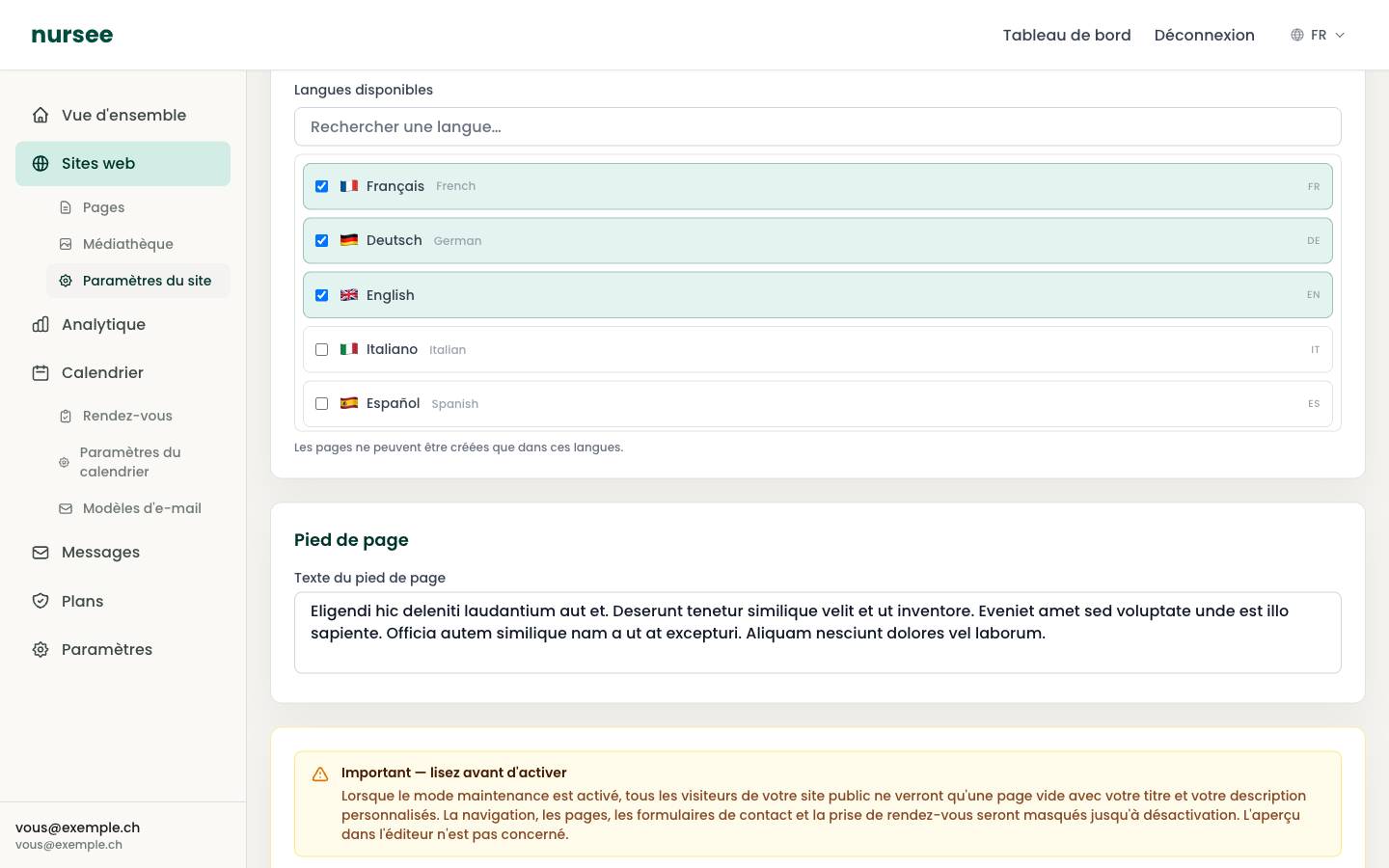
Le réglage se trouve dans Sites web → Paramètres du site, section « Langues ».
La langue par défaut
C'est la langue principale de votre site. C'est ce qu'un visiteur voit quand il arrive sans avoir choisi de langue.
Choisissez-la dans la liste déroulante « Langue par défaut ».
Les langues disponibles
En dessous, une liste avec des cases à cocher. Chaque langue cochée est autorisée sur votre site.
Utilisez le champ « Rechercher une langue… » pour trouver rapidement une langue dans la liste.
Cochez les langues que vous voulez proposer.
Cliquez sur « Enregistrer les paramètres ».
Un rappel s'affiche sous la liste : Les pages ne peuvent être créées que dans ces langues.
Ce que fait exactement ce réglage
Cocher une langue ne traduit rien. Cela ne fait que deux choses :
Cela autorise la création de pages dans cette langue.
Cela fait apparaître cette langue dans le sélecteur de langue en haut de votre site.
La traduction, elle, se fait page par page. Voir Traduire une page.
L'ordre à suivre
Faites toujours dans cet ordre :
Cochez la nouvelle langue ici, et enregistrez.
Traduisez vos pages une par une, dans l'éditeur.
Publiez les pages traduites.
Voir Traduire une page pour l'étape 2.
Retirer une langue
Décochez-la, puis enregistrez. Le sélecteur de langue de votre site ne la proposera plus.
Combien de langues ?
Notre conseil : une, ou deux au maximum.
Chaque langue supplémentaire multiplie votre travail. Chaque fois que vous corrigez un tarif, changez un horaire ou ajoutez une prestation, il faut le faire dans toutes les langues. Un site bilingue mal tenu à jour fait plus de mal qu'un site monolingue impeccable.
Commencez par une langue, soignez-la, et n'ajoutez une deuxième que si vous avez réellement des patients qui la parlent.
La langue du site et la langue de votre tableau de bord
Ce sont deux choses différentes :
- Les langues du site (cette page) concernent ce que voient vos visiteurs.
- La langue de l'interface concerne la langue de votre tableau de bord, pour vous. Elle se règle dans Paramètres. Voir Les paramètres du compte.
Vous pouvez parfaitement gérer un site en allemand depuis un tableau de bord en français.