Les rendez-vous en ligne
Les modèles d'e-mail
Personnaliser les trois messages envoyés automatiquement à vos patients.
Dans cet article
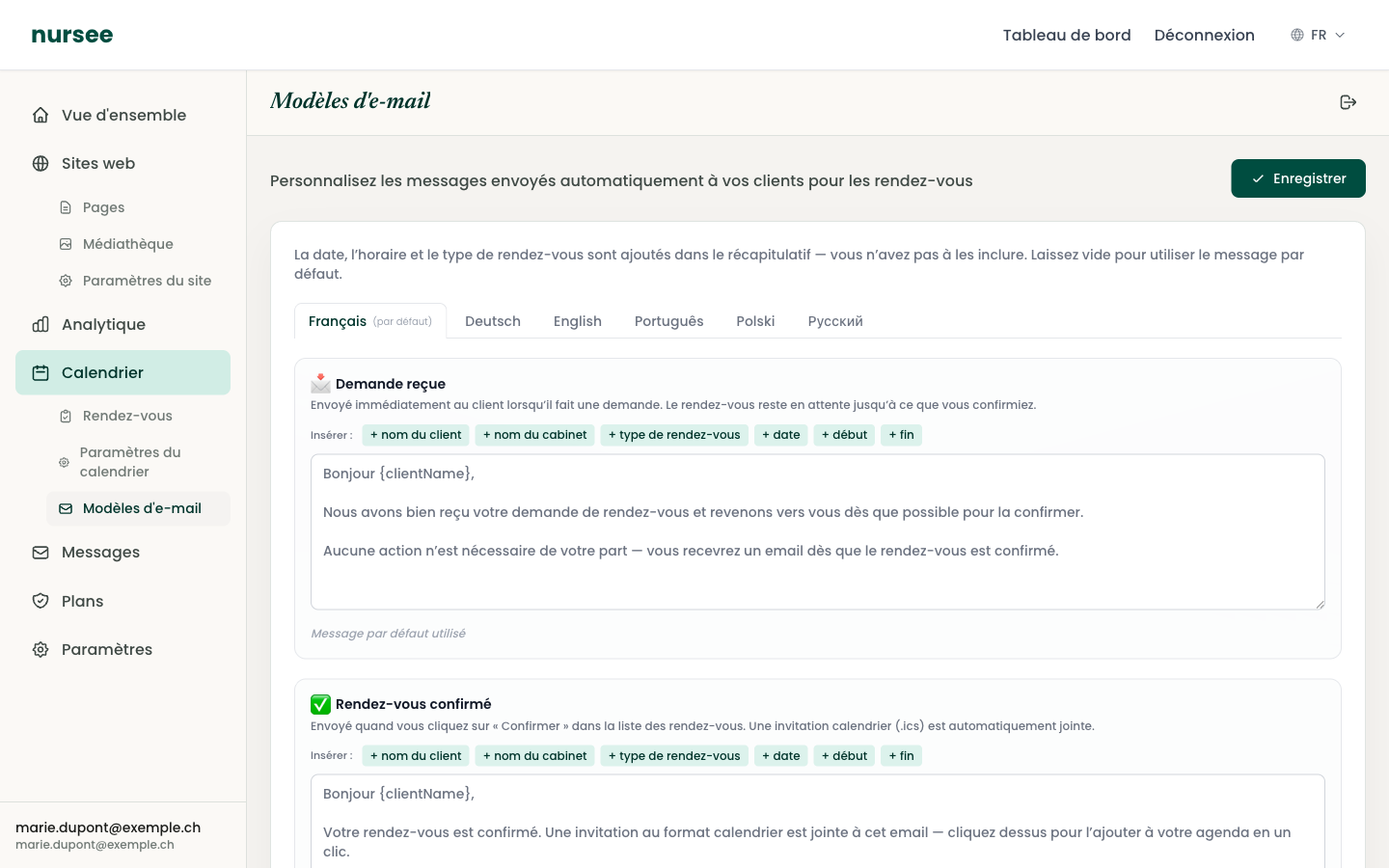
Trois e-mails partent automatiquement vers vos patients au fil de leurs rendez-vous. Vous pouvez réécrire chacun avec vos propres mots.
Pour y accéder : Calendrier → Modèles d'e-mail.
Les trois messages
| Modèle | Quand il est envoyé |
|---|---|
| Demande reçue | Immédiatement, quand le patient fait sa demande. Le rendez-vous est encore en attente. |
| Rendez-vous confirmé | Quand vous cliquez sur « Confirmer ». Une invitation calendrier (.ics) est jointe automatiquement. |
| Rendez-vous annulé | Quand vous annulez un rendez-vous depuis votre tableau de bord. |
Ce que vous n'avez pas à écrire
Modifier un message
Allez dans Calendrier → Modèles d'e-mail.
Choisissez l'onglet de langue en haut (Français, Deutsch…). L'onglet marqué (par défaut) est la langue principale de votre site.
Cliquez dans le champ de texte du modèle à modifier.
Écrivez votre message.
Cliquez sur « Enregistrer », en haut à droite.
Sous chaque champ, une mention indique l'état : Message par défaut utilisé ou Personnalisé dans cette langue.
Insérer des informations personnalisées
Au-dessus de chaque champ, une rangée de petits boutons : + nom du client, + nom du cabinet, + type de rendez-vous, + date, + début, + fin.
Cliquez sur un bouton : un code est inséré dans votre texte à l'endroit du curseur. Ce code sera remplacé par la vraie information au moment de l'envoi.
| Bouton | Code inséré | Remplacé par, par exemple |
|---|---|---|
| + nom du client | {clientName} | Marie Dupont |
| + nom du cabinet | {siteName} | Cabinet Santé Léman |
| + type de rendez-vous | {eventTypeName} | Consultation initiale |
| + date | {date} | 14 févr. 2026 |
| + début | {startTime} | 09:00 |
| + fin | {endTime} | 09:30 |
Ainsi, Bonjour {clientName}, arrivera dans la boîte de votre patiente sous la forme Bonjour Marie Dupont,.
Revenir au message par défaut
Sous chaque champ, un lien « Rétablir le message par défaut » remet le texte d'origine. Utilisez-le sans hésiter si vous n'êtes plus satisfait de votre version.
Les langues
Chaque onglet de langue a son propre texte. Un patient qui réserve depuis la version allemande de votre site reçoit l'e-mail allemand.
Si vous ne personnalisez pas une langue, c'est le message par défaut de cette langue qui est utilisé. Vos patients reçoivent donc toujours un message correct, même si vous ne touchez à rien.
Exemples de messages
Demande reçue
Rendez-vous confirmé
Rendez-vous annulé
Si vous ne pouvez pas enregistrer
Un message peut s'afficher : Enregistrez d'abord vos paramètres du calendrier pour pouvoir sauvegarder les modèles d'e-mail.
C'est normal : les modèles sont rattachés à votre calendrier. Allez dans Calendrier → Paramètres du calendrier, cliquez sur « Enregistrer », puis revenez ici.