Online appointments
Email templates
Customising the three messages sent automatically to your patients.
In this article
Three e-mails go out to your patients automatically as an appointment progresses. You can rewrite each of them in your own words.
To get there: Calendar → Email templates.
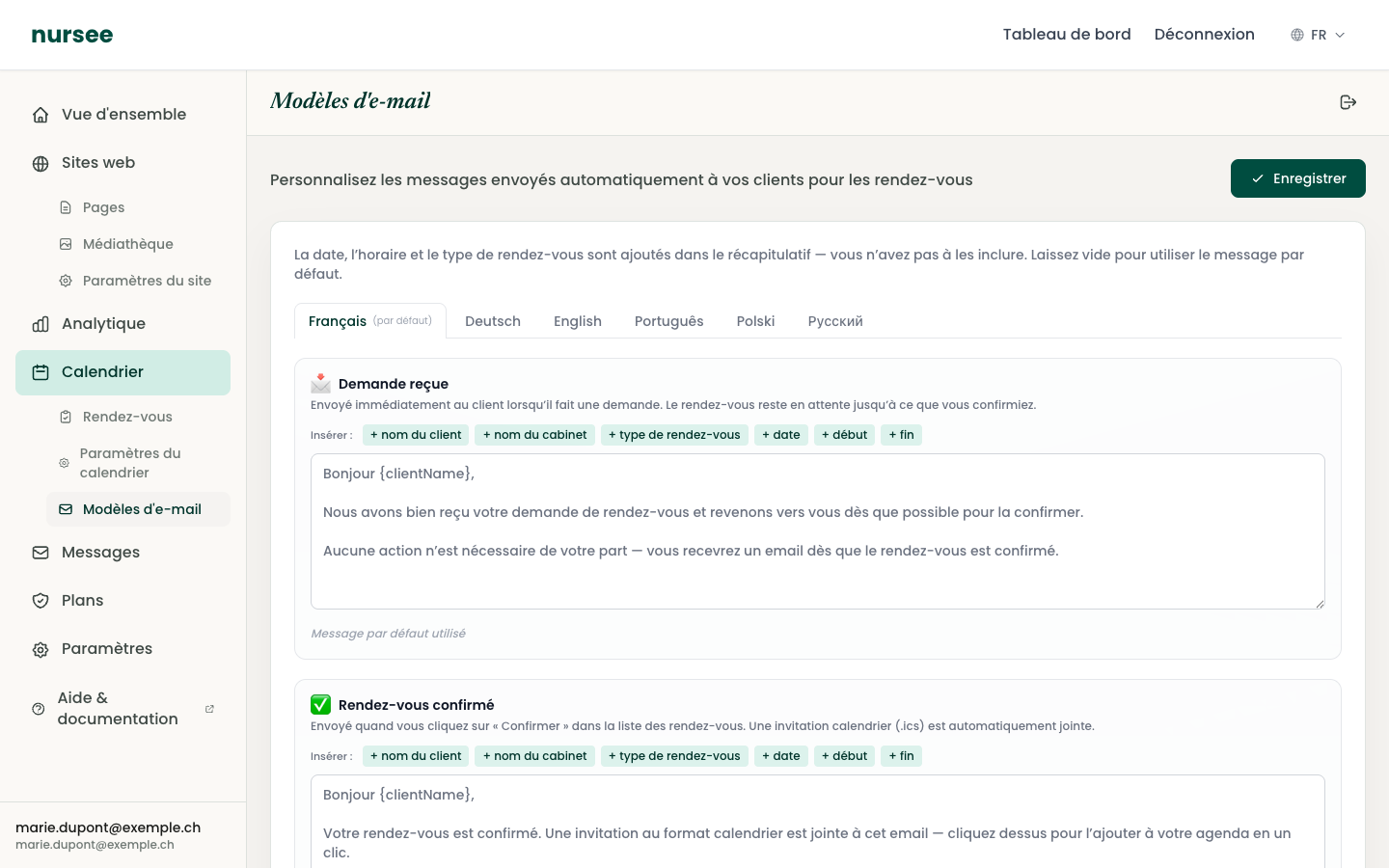
The three messages
| Template | When it is sent |
|---|---|
| Request received | Immediately, when the patient makes a request. The appointment is still pending. |
| Appointment confirmed | When you click « Confirm ». A calendar invitation (.ics) is attached automatically. |
| Appointment cancelled | When you cancel an appointment from your dashboard. |
What you do not have to write
Editing a message
Go to Calendar → Email templates.
Choose the language tab at the top (English, Deutsch…). The tab marked (default) is the main language of your site.
Click in the text field of the template you want to change.
Write your message.
Click « Save », at the top right.
Under each field, a note shows the state: Default message used or Customised in this language.
Inserting personalised details
Above each field sits a row of small buttons: + client name, + practice name, + appointment type, + date, + start, + end.
Click a button: a placeholder is inserted into your text where the cursor is. It will be replaced by the real detail when the e-mail is sent.
| Button | Placeholder inserted | Replaced by, for instance |
|---|---|---|
| + client name | {clientName} | Marie Dupont |
| + practice name | {siteName} | Léman Health Practice |
| + appointment type | {eventTypeName} | First consultation |
| + date | {date} | 14 Feb 2026 |
| + start | {startTime} | 09:00 |
| + end | {endTime} | 09:30 |
So Hello {clientName}, arrives in your patient's inbox as Hello Marie Dupont,.
Going back to the default message
Under each field, a « Restore default message » link puts the original text back. Use it without hesitation if you are no longer happy with your version.
The languages
Each language tab has its own text. A patient who books from the German version of your site receives the German e-mail.
If you do not customise a language, that language's default message is used. So your patients always get a correct message, even if you touch nothing.
Example messages
Request received
Appointment confirmed
Appointment cancelled
If you cannot save
A message may appear: Save your calendar settings first so you can save the email templates.
That is normal: the templates belong to your calendar. Go to Calendar → Calendar settings, click « Save », then come back here.