The pages of your site
Creating a new page
Adding a page to your site by filling in four fields.
In this article
A new page takes less than a minute to create. You will fill in its content afterwards, at your own pace.
The steps
In the left menu, click Websites, then Pages.
At the top right, click the green « + New page » button.
A small window opens in the middle of the screen.
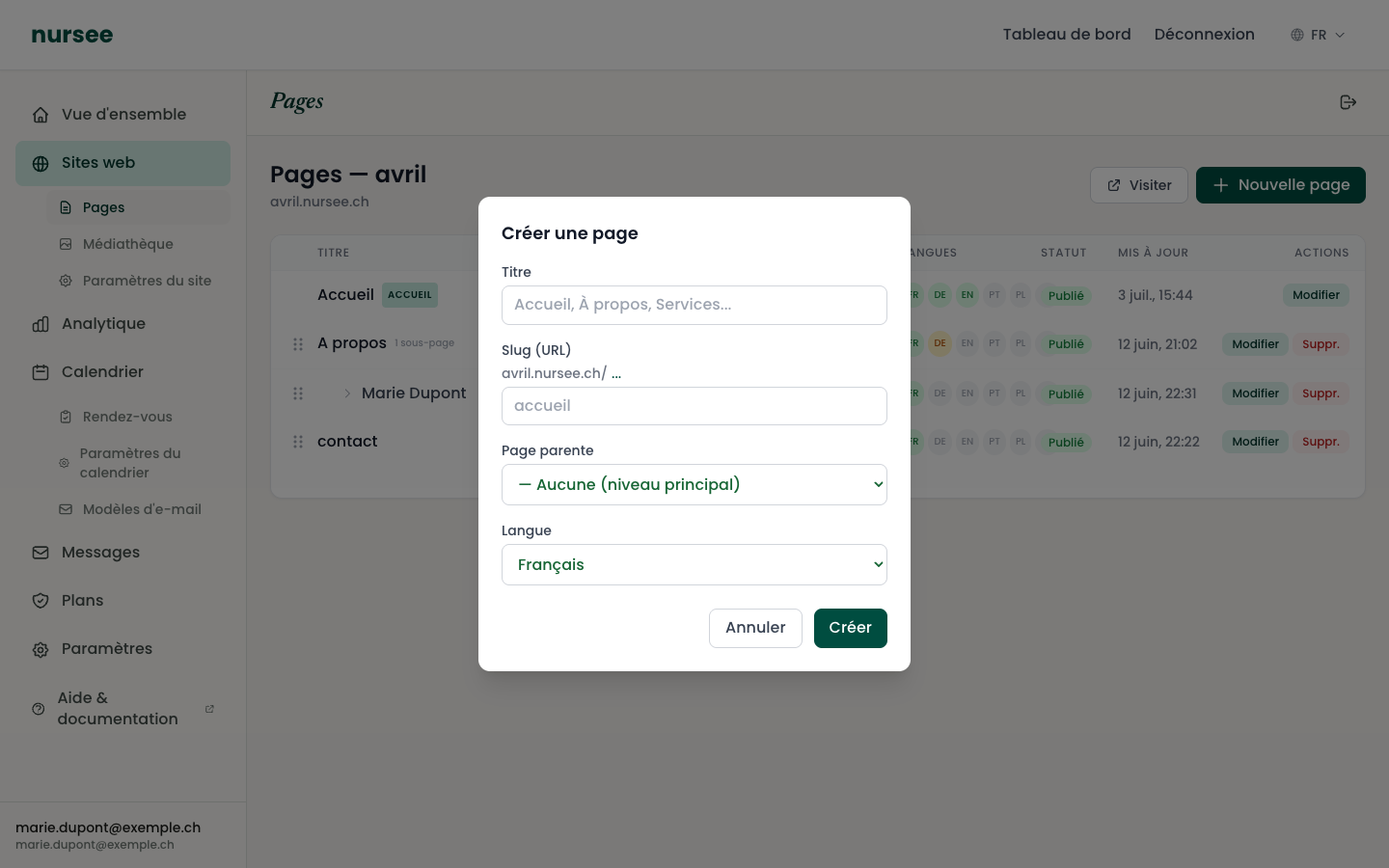
The « Create a page » window Under « Title », type the name of the page, for instance
My services.Notice that the « Slug (URL) » field just below fills in by itself:
my-services. That is the page's future address. Leave it as it is.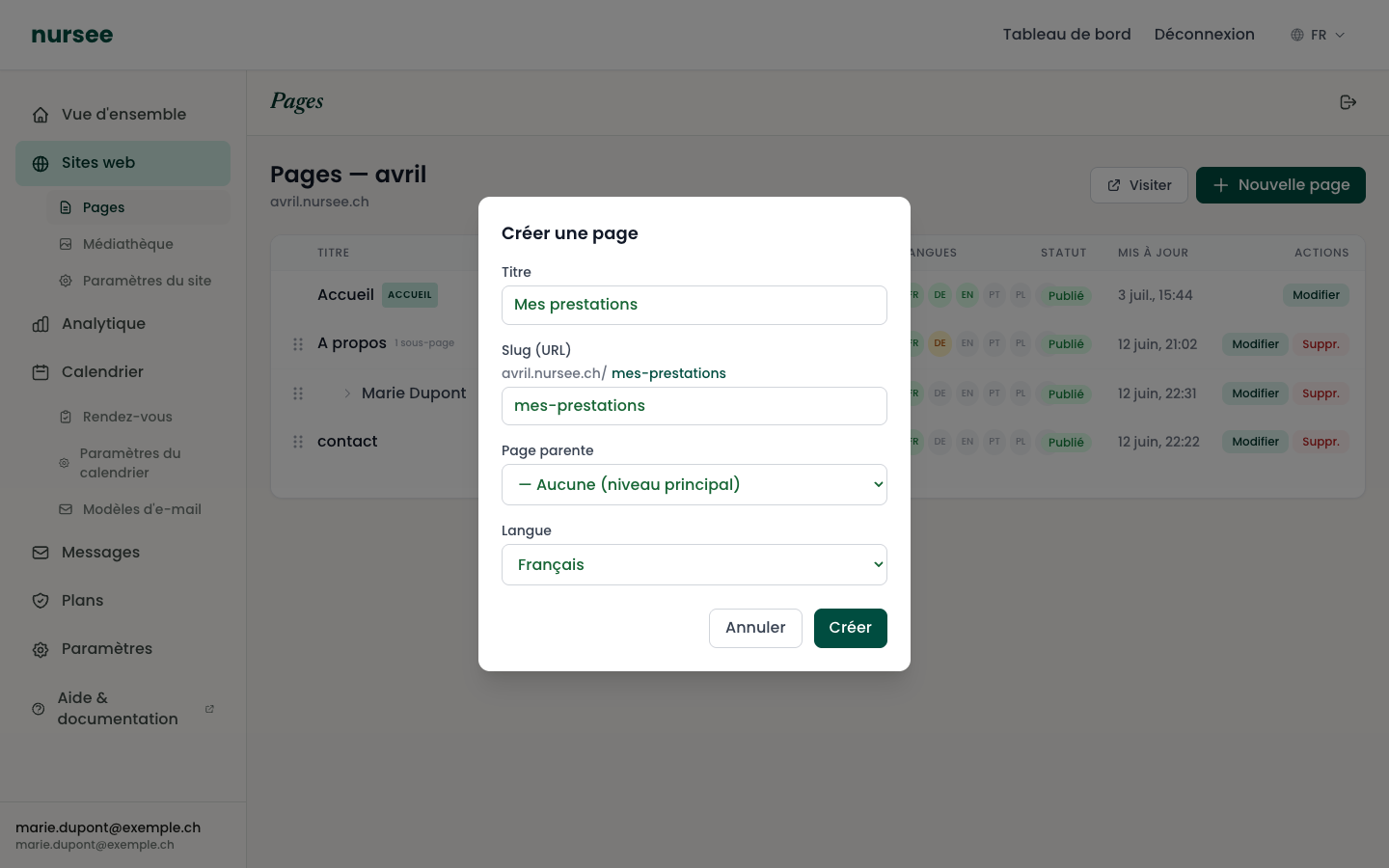
The slug fills in automatically from the title Leave « Parent page » on « — None (top level) », unless you want to create a sub-page.
Check the « Language ». It is already set to the main language of your site.
Click « Create ».
The page appears in the list straight away, as a Draft. The editor opens so you can fill it in.
What comes next?
An empty page is of no use: you need to add content blocks.
Add blocks: text, photos, a list of your services…
Click « Save ».
When you are happy with it, click « Publish ».
If the « New page » button does nothing
Almost always, the page limit of your plan has been reached. Look at the line under the title: it reads Site pages: 4 / 4, with a message in orange.
Two solutions:
- delete a page you no longer need;
- move to a plan that allows more pages, in the Plans section.
How many pages do you need?
Do not build a maze. For most independent health professionals, four pages are plenty:
- Home — who you are, what you do, how to reach you.
- Services — the detail of what you offer.
- About — your background, your qualifications, your approach.
- Contact — your details, a form, possibly the calendar.
A visitor who finds what they are looking for in two clicks calls you. A visitor who gets lost leaves.