The content blocks
The Embedded content block (iframe)
Inserting a YouTube video, a Google Maps map or an external form into your page.
In this article
The Embedded content block inserts content from another website into your page: a video, a map, a form.
The technical term is iframe: picture a small window cut into your page, through which you can see another site.
What you can embed
| Content | Where to get the link |
|---|---|
| YouTube video | The video's address in the browser bar. |
| Google Maps map | On Google Maps: Share button, Embed a map tab. |
| Typeform, Google Forms | The form's share link. |
| Cal.com, Calendly | The public link of your booking page. |
| Vimeo video | The video's address. |
Adding the block
Open the page in the editor.
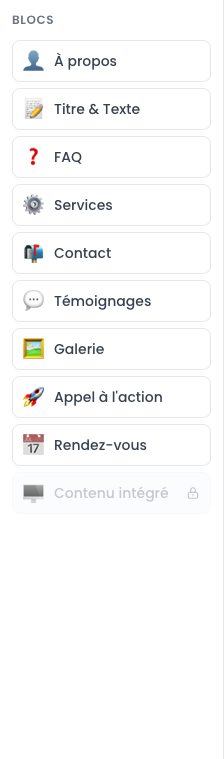
In the left-hand column, click « Embedded content ».
Fill in the fields (detailed below).
Click « Save ».
Title above (optional)
A heading shown above the content, for instance Directions or A tour of the practice. Leave it blank if you do not want one.
Link to embed
This is the key field. Paste the address of the content here.
The address must begin with https://. Links that do not start with http:// or https:// are refused, for the safety of your site and your visitors.
Displayed height (pixels)
The height of the window, in pixels. Values that work well:
| Content | Suggested height |
|---|---|
| YouTube video | 450 to 520 |
| Google Maps map | 400 to 500 |
| External form | 600 to 800 |
If the content is cut off at the bottom, increase the value. If there is a lot of white space below it, reduce it.
Preview (as on the site)
Under the fields, a preview shows the content exactly as it will appear. Adjust the height until you are happy, then save.
If the preview stays empty, the address is not valid: check that it begins with https://.
How to get a Google Maps link
Open Google Maps and search for your practice address.
Click Share.
Choose the « Embed a map » tab.
In the code offered, find the part in quotation marks after
src=: that is the address you need. It begins withhttps://www.google.com/maps/embed?...Copy it and paste it into the « Link to embed » field.
Precautions worth knowing
Two other points to keep in mind:
- Loading time. Each embed loads an entire website inside your page. Three videos on the same page will make it slow on a phone. One per page is ideal.
- Cookies. YouTube and Google Maps set their own cookies on your visitors. Your site's consent banner takes that into account, but if you have a privacy policy, mention these services in it.
An alternative without the Pro plan
You want to show where your practice is but you do not have the Pro plan? Nothing is lost:
- put your full address in a Contact block;
- add a
See on Google Mapslink in a Title & Text block, pointing to the Google Maps share address.
The visitor opens the map in a new tab. That is almost as convenient, and your page stays fast.