Online appointments
Your working hours
Setting your working days and hours, and splitting your day into several ranges.
In this article
Your weekly availability defines when your patients can book. It is your typical week: it repeats automatically, week after week.
Where to define it
In the left menu: Calendar → Calendar settings.
Scroll down to the « Weekly availability » section.
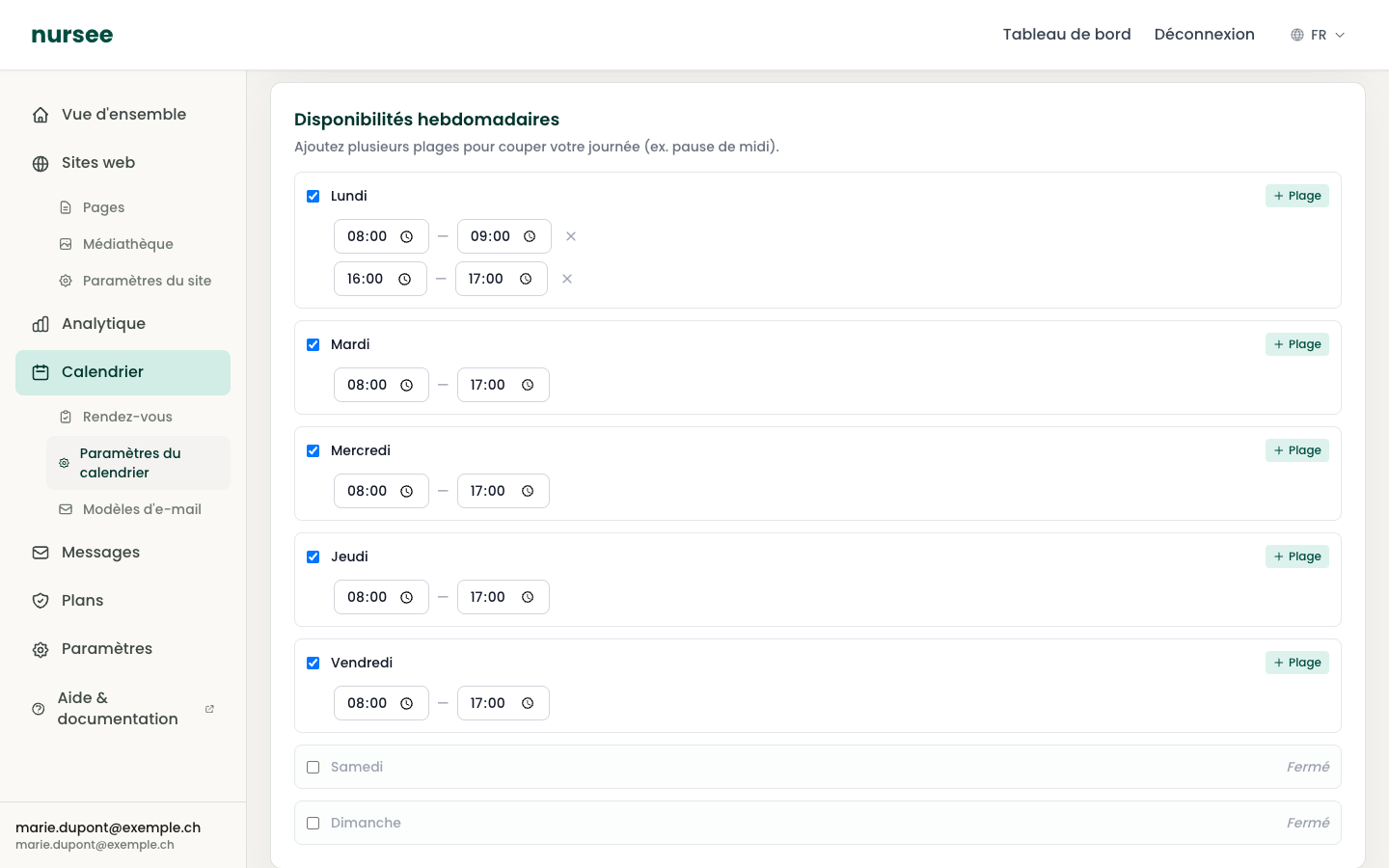
Every day of the week has its own box, from Monday to Sunday.
Opening or closing a day
- Tick the box to the left of the day's name: that day is open for booking.
- Untick it: the day reads Closed and greys out. No appointment can be booked.
Setting the hours of a day
Every open day shows at least one time range: a start time and an end time.
Click in the start time field.
Type the time, or use the small clock to the right of the field.
Do the same for the end time.
The format is the 24-hour clock: 08:00, 14:30, 17:00.
Splitting a day in two (the lunch break)
This is the most useful setting on the whole page. To avoid being disturbed during your break, simply create two ranges in the same day.
On the row of the day concerned, click « + Range » at the top right of the box.
A second row of times appears.
Set the two ranges, for instance:
- first range:
08:00—12:00;- second range:
14:00—18:00.
Result: no appointment can be booked between 12:00 and 14:00. Your break is protected.
You can add as many ranges as you need to one day.
To remove a range, click the cross (×) on the right of the row.
A full example
Here is a realistic typical week for a practice:
| Day | Ranges |
|---|---|
| Monday | 08:00 – 12:00 and 14:00 – 18:00 |
| Tuesday | 08:00 – 12:00 and 14:00 – 18:00 |
| Wednesday | 08:00 – 12:00 |
| Thursday | 08:00 – 12:00 and 14:00 – 18:00 |
| Friday | 08:00 – 16:00 |
| Saturday | Closed |
| Sunday | Closed |
Do not forget to save
Click « Save », at the top right of the page. A green message confirms: Calendar settings saved.
How the slots are calculated
Your patients do not see « ranges » but specific slots. They are worked out from four things:
Your time ranges (this page).
The duration of the appointment type the patient chose.
The break between appointments you set.
The appointments already booked and the blocked periods.
An example: range 08:00 – 12:00, a 30-minute consultation, a 15-minute break. The patient will see 08:00, 08:45, 09:30, 10:15, 11:00 — and nothing after, because an appointment starting at 11:45 would run past 12:00.
For holidays and time off
This page defines your usual week. To block a specific date — holidays, a public holiday, training — use the « Blocked periods » section just below. See Holidays and time off.