Images and videos
Alt text and focal point
Two settings per image that improve accessibility, search visibility and cropping.
In this article
Every image in your media library has two settings. They take thirty seconds and make a real difference.
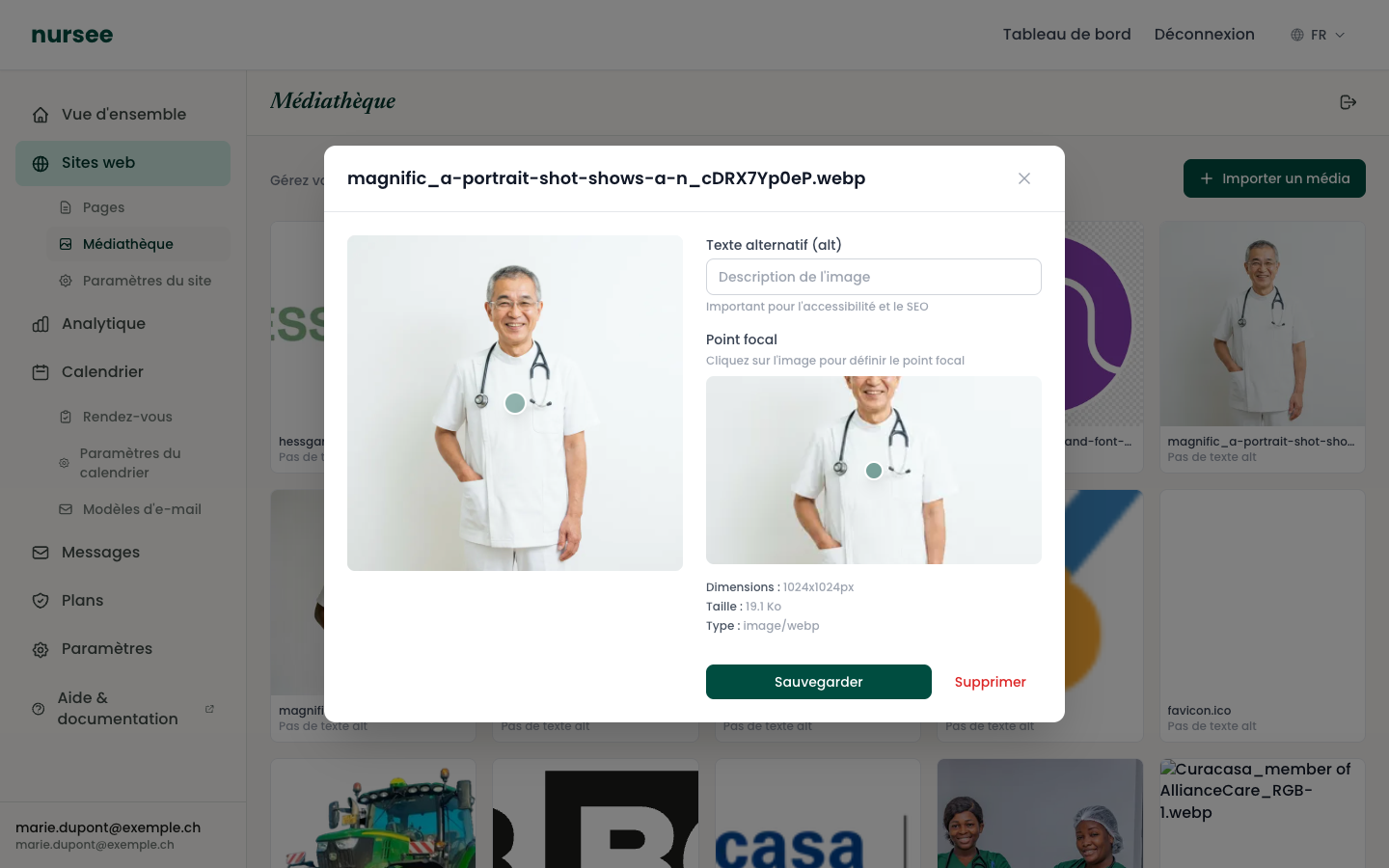
To set them: Websites → Media library, then click an image.
The alt text
This is a short written description of what the image shows.
It does not appear on your site. It serves three purposes:
People with impaired vision. Their screen reader reads this text aloud. Without it, they only hear « image ».
Google. A search engine does not see images, it reads their description. A well-described image improves your visibility.
Slow connections. If an image fails to load, this text appears in its place.
How to fill it in
Click the image in the media library.
In the « Alternative text (alt) » field, describe the image in one sentence.
Click « Save ».
Describing an image well
Describe what you can see, plainly, as if you were telling someone over the phone.
| ✅ Good | ❌ Bad | Why |
|---|---|---|
Nurse taking an elderly patient's blood pressure at home | image1.jpg | A file name describes nothing. |
Treatment room with massage table and armchair | photo of my practice | Too vague to be useful. |
Entrance to the practice, 12 Station Road | nursing care Lausanne Geneva massage prices | A list of keywords: Google penalises that. |
One short, honest sentence. Do not write « photo of » or « image of »: the screen reader already announces it.
The focal point
This is the part of the image that must always stay visible, whatever the crop.
What it is for
Your site appears on screens of every size. The same photo is sometimes shown wide on a desktop, and tall and narrow on a phone. So it has to be cropped automatically.
Without a focal point, cropping happens from the centre — and if your subject is off to one side, it gets cut off.
The classic case: a photo of you, off-centre to the right. On a phone, your face disappears. With the focal point on your face, it always stays in frame.
How to set it
Click the image in the media library.
Under « Focal point », a small version of the image appears.
Click the important part of the image — the face, the main subject.
A green dot marks the spot you chose.
Click « Save ».
Do I need to do this for every image?
The alt text: yes, for all of them. It is quick and it is useful.
The focal point: only for images whose subject is off-centre, and above all for the large background images of Hero blocks. For the small thumbnails in a gallery, the default is fine.