Images and videos
The media library
Importing, finding and deleting your photos and videos, all in one place.
In this article
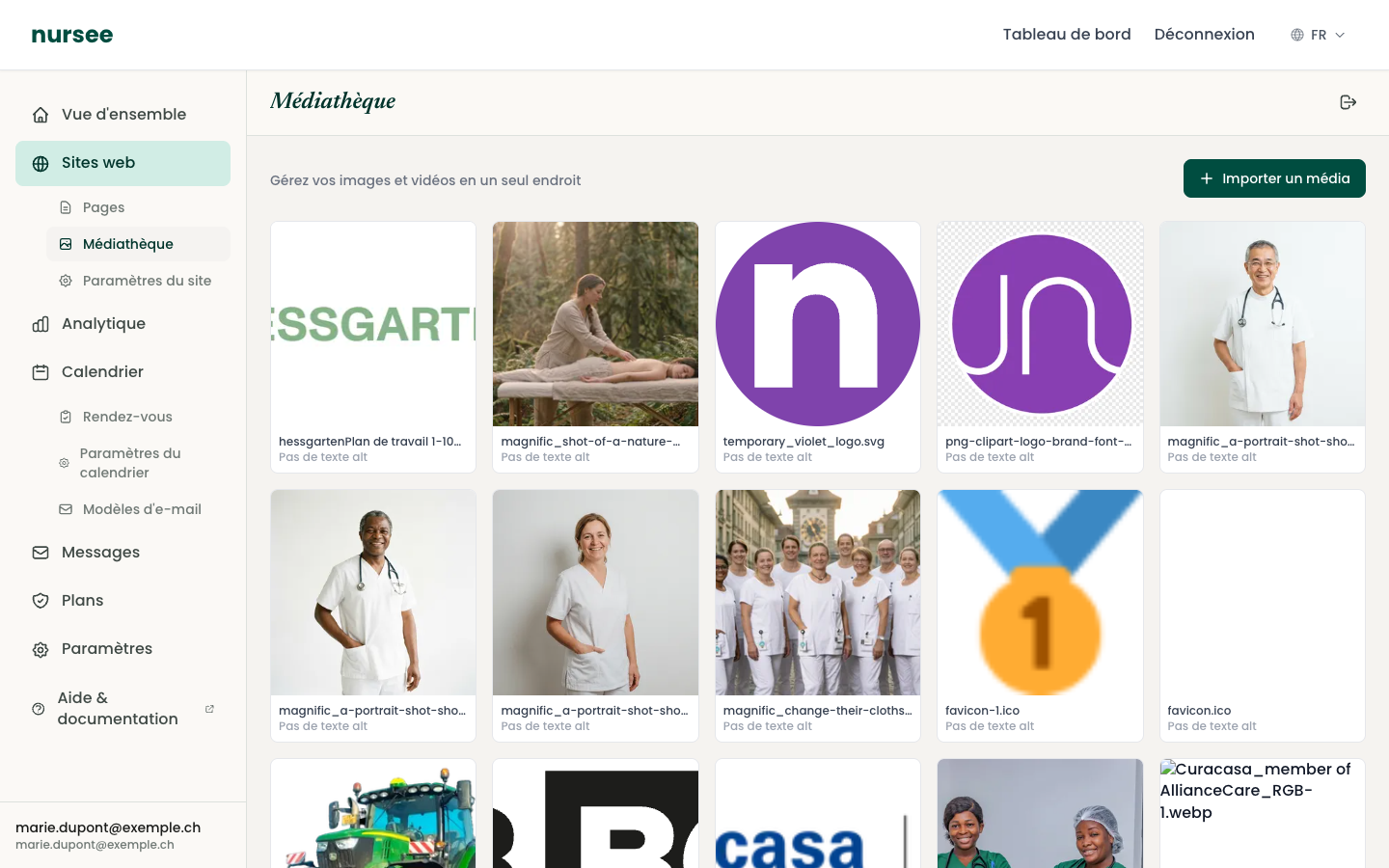
The media library is your photo album. Every image and video you import is filed there, and you can reuse them as often as you like, on as many pages as you like.
To get there: in the left menu, Websites → Media library.
Importing an image
Go to Websites → Media library.
At the top right, click « + Import media ».
Your computer's file window opens. Navigate to your photo and double-click it.
Wait a few seconds: a message Image imported confirms.
The image appears in the grid, in first position.
Accepted formats
| Type | Formats | Limit |
|---|---|---|
| Images | JPG, PNG, WEBP, SVG, ICO | Within your storage allowance |
| Videos | MP4 and common formats | 10 MB maximum per video |
Preparing your photos before importing
A good, well-prepared photo does more for your site than any setting.
- Photograph during the day, near a window. Natural light is your best friend.
- Hold the phone straight, horizontally for wide images.
- Tidy the scene before you press the button. The stray cardboard box is always noticed.
- Take several photos of the same scene; you will choose the best afterwards.
Finding an image
Images are sorted from newest to oldest. Under each thumbnail you see its file name and its alt text.
If you have many images, click « Load more » at the bottom to show the rest.
Editing an image
Click a thumbnail: its card opens. You can set its alt text and its focal point there. See Alt text and focal point.
Deleting an image
Click the image's thumbnail.
On the card, click « Delete » (in red).
Confirm.
Your storage allowance
Every subscription plan includes an amount of storage. To see where you stand, go to Overview: the « Storage » card shows for instance 1.37 MB of 1 GB.
If you are getting close to the limit, there are two options: delete images you no longer use, or move to a plan with more space.