The content blocks
The text blocks (About, Title & Text)
The two blocks for writing a paragraph, with or without an image, and the small formatting bar.
In this article
These are the two blocks you will use most. Both are for writing text; the only difference is the image.
| Block | Content |
|---|---|
| About | A heading, some text, an image beside it, and an optional button. |
| Title & Text | A heading, some text, and an optional button. No image. |
Use About when you have a good photo to show (you, your practice). Use Title & Text for everything else.
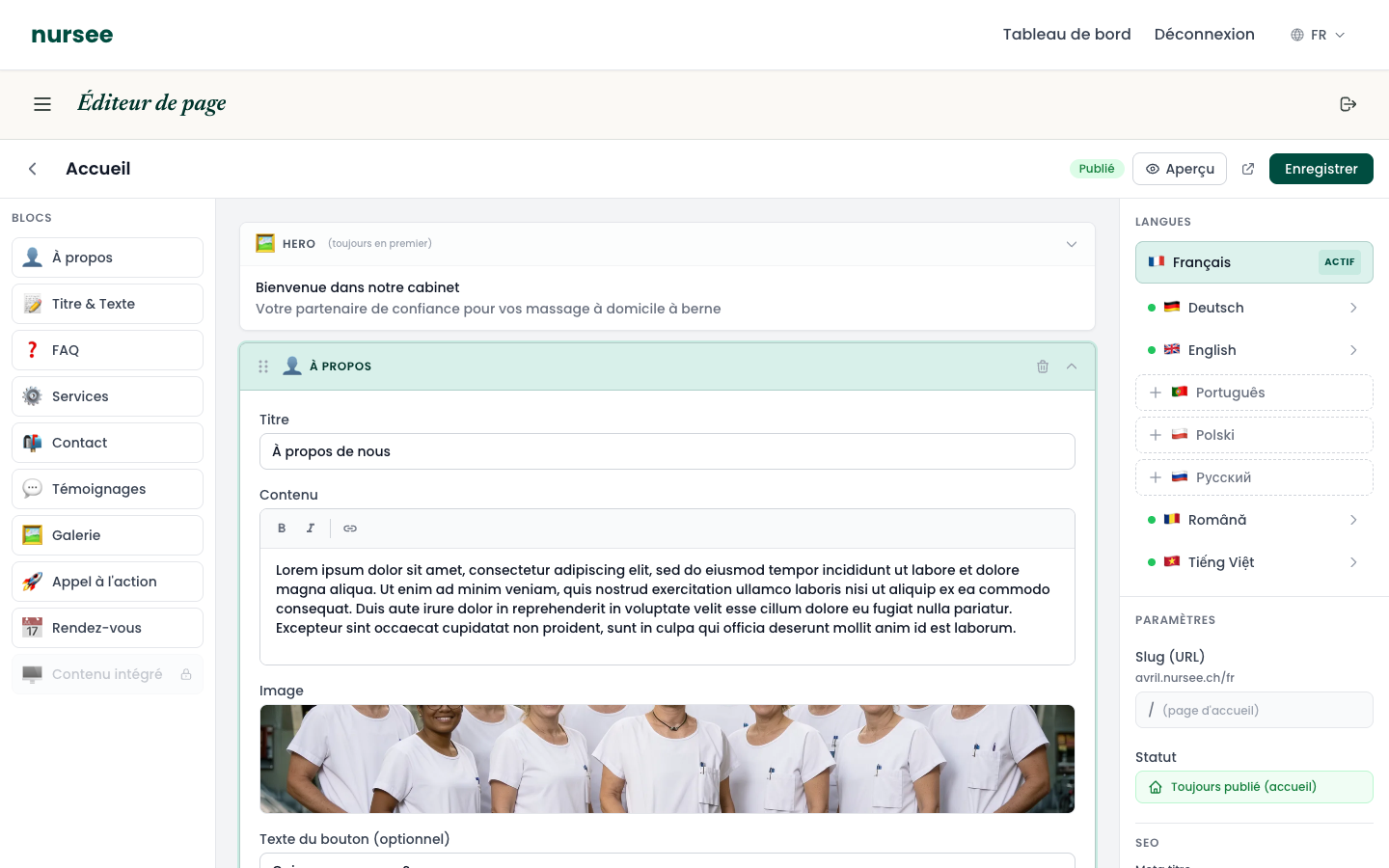
Filling in the block
Open the page in the editor, then click the name of the block.
Title — the sentence that introduces the section, for instance
Who am I?orHow I work.Content (or Text) — your paragraph. Write normally, as in an e-mail. Press
Enterfor a new paragraph.Image — for the About block only. Click the field, the media library opens, choose your photo.
Click « Save ».
The small formatting bar
Above the Content field, three buttons let you format the text.
The principle is always the same: select the text first with the mouse, then click the button.
| Button | Effect | When to use it |
|---|---|---|
| B | Makes the text bold | For an important word or figure. |
| I | Makes the text italic | For a quotation, a Latin term, an institution's name. |
| 🔗 | Turns the text into a link | To point to another page or website. |
Creating a link
Select the word or group of words that should be clickable.
Click the chain icon (🔗).
Type the destination address:
- a page on your site:
/contact;- an external site:
https://www.example.ch(do not forget thehttps://);- an e-mail address:
mailto:contact@example.ch.Confirm.
The optional button
At the bottom of the block, two fields let you add a button under your text:
- Button text (optional) — what is written on it, for instance
Book an appointment. - Button link (optional) — where it goes.
The button only appears if you fill in both fields. Leave the text blank and no button appears.
For the link, a list offers the pages of your site: choose one from the list rather than typing the address by hand — you will avoid typos.
Writing well for the web
Three rules that make a real difference:
Short paragraphs
Three or four lines at most. A ten-line wall of text drives the reader away, especially on a phone.
Speak to your reader
Write « you ». Compare:
- ❌
The practice offers home care to patients in the region. - ✅
We come to your home, anywhere in the region.
Start with what matters
Your reader decides in three seconds whether to keep reading. Put the essential information in the first sentence, not at the end.