Getting started
Getting to know the dashboard
The full tour of the left-hand menu: what each section is for.
In this article
The dashboard is your workspace. It is always laid out the same way:
- on the left, the menu with every section;
- in the middle, the section you have opened;
- at the top right, the « Log out » button.
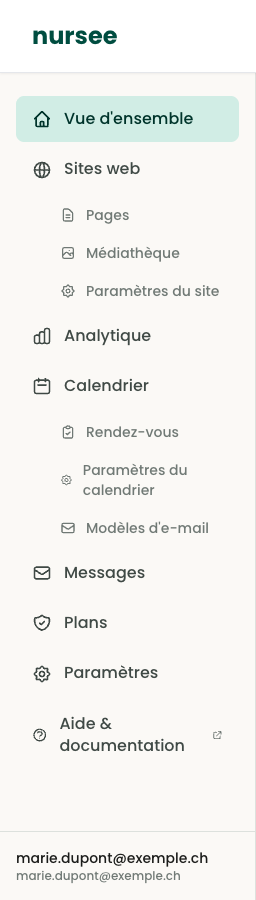
The menu never changes. Wherever you are, you can always come back by clicking a section on the left.
The sections, one by one
Overview
The home page of your area. It sums up the essentials: your subscription plan, the space used by your photos, the number of visitors over the last 30 days, and shortcuts to the things you do most often.
Websites
The heart of your work. This section holds three sub-sections:
- Pages — the list of every page on your website. This is where you create and edit content. See Understanding pages.
- Media library — all your photos and videos in one place. See The media library.
- Site settings — the name, the logo, the colours, the languages, your contact details. See Name, logo and favicon.
Analytics
Your visitor figures: how many people visit your site, which pages they look at, which country they come from. See Analytics.
Calendar
Everything to do with online appointments:
- Bookings — the requests you have received, to confirm or cancel.
- Calendar settings — your consultation types, your hours, your time off.
- Email templates — the messages sent automatically to your clients.
Messages
The messages visitors send you through the contact form on your website. See Messages received.
Plans
Your subscription: the active plan, the plans available, changing plan and cancelling. See Subscription and plans.
Settings
The details of your personal account: your e-mail address and the language of the interface. See Account settings.
Help & documentation
The link to this help centre. It opens in a new tab so you never lose what you are working on.
The coloured dots
To the right of some sections, a small coloured dot may appear:
- a red dot next to Messages: you have unread messages;
- an orange dot next to Calendar: you have appointment requests waiting for your answer.
The number tells you how many. That is your to-do list.
Seeing my site the way the public sees it
From Websites → Pages, click the « Visit » button at the top right. Your site opens in a new tab, exactly as your visitors see it.
Keep that tab open while you work: after each save, just go back to it and refresh the page to see the result.