The look of your site
Maintenance mode
Closing your site to the public for a while, showing an explanatory page instead.
In this article
Maintenance mode replaces your whole site with a single, simple page carrying a title and a message of your choosing.
It is the shutter on your shop: nothing is visible any more, except your notice.
When to use it
- During a complete rebuild of your site, so nobody sees a building site.
- During a long absence, if you do not want to receive appointment requests.
- If you stop practising temporarily.
For an ordinary holiday where you want to stay reachable, do not use it. Block the dates in your calendar instead: see Holidays and time off.
Turning maintenance mode on
Go to Websites → Site settings.
Scroll right down to the « Maintenance mode » section.
Read the orange box headed Important — read before enabling.
First fill in the two fields of the page that will be shown:
- Page title — for instance
We'll be back soon.- Description — for instance
The practice is closed until 15 September. For emergencies, call 079 123 45 67.Flip the switch to the right of « Maintenance mode »: it changes from Disabled to Enabled.
Click « Save settings », at the top right.
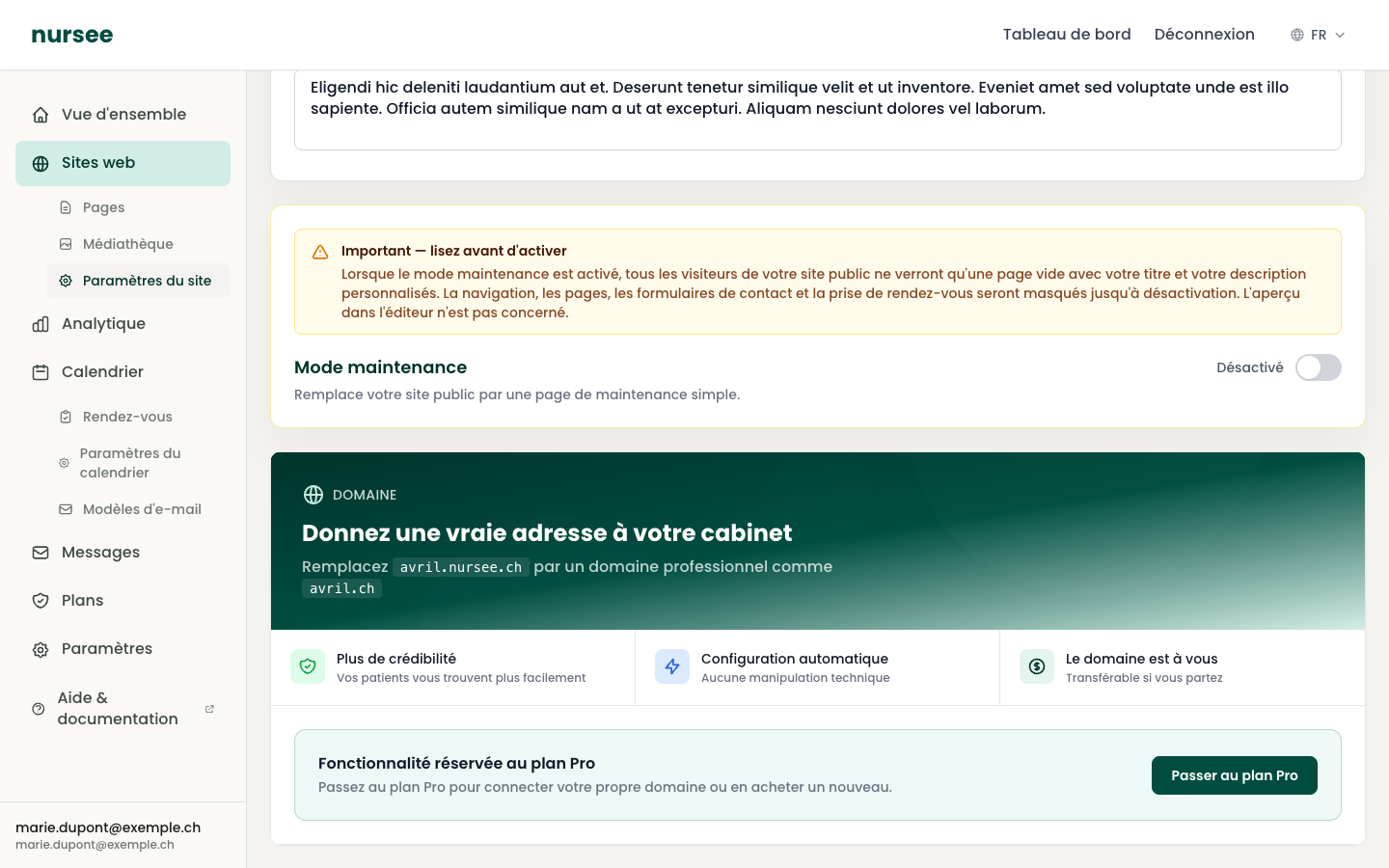
What exactly happens
On the other hand:
- your dashboard works normally, you can keep working;
- the editor preview is not affected, you still see your pages as they will be;
- nothing is deleted: your pages, text and photos are untouched.
Writing your message well
Your visitor wants to know two things: when you are back and how to reach you meanwhile. Give them both.
Good example:
Bad example:
The second message says nothing: the visitor leaves and looks for another professional.
Checking that it really is on
When maintenance mode is on, an orange « Maintenance » badge appears:
- in the left menu, next to Websites;
- at the top of your dashboard.
It is the reminder that your site is closed to the public. It is deliberately visible: you do not forget a shutter that is down.
Turning maintenance mode off
Go to Websites → Site settings.
Scroll to « Maintenance mode ».
Flip the switch to Disabled.
Click « Save settings ».
Your site becomes visible again immediately, exactly as before. The orange badge disappears.