The content blocks
Understanding blocks
What a block is, and how to add, move and delete one.
In this article
A block is a brick of content. A page is a stack of blocks, from top to bottom.
You choose which ones you want, in which order, and you fill in their content. That is the whole idea: no layout to build, no alignment to set. Each block already knows how to display itself nicely — including on a phone.
The blocks available
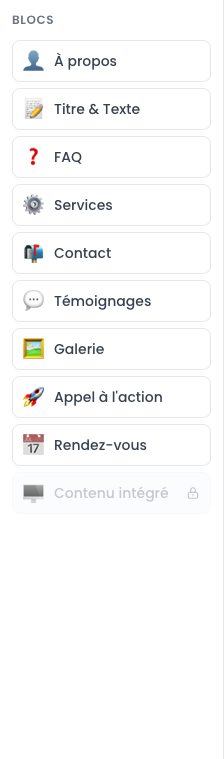
| Block | What it shows |
|---|---|
| Hero | The big banner at the top of the page. See The Hero block. |
| About | A piece of text with an image beside it. See The text blocks. |
| Title & Text | A heading and a paragraph, with no image. See The text blocks. |
| FAQ | A list of questions and answers that unfold. See The FAQ block. |
| Services | What you offer, as cards with icons. See The Services block. |
| Contact | Your contact details and a contact form. See The Contact block. |
| Testimonials | What your patients say. See The Testimonials block. |
| Gallery | Several photos in a grid. See The Gallery block. |
| Call to action | A large button inviting the visitor to act. See The Call to action block. |
| Appointments | The appointment booking form. See The Appointments block. |
| Embedded content | A video, a map, an external form. See The Embedded content block. |
Adding a block
Open the page: Websites → Pages → « Edit ».
In the left-hand column, click the block you want to add.
The block appears at the bottom of your page, already open and ready to fill in.
Fill in its fields.
Click « Save ».
Opening and closing a block
- Click the name of the block (the grey bar at the top, with its icon): the block opens and its fields appear.
- Click again: the block folds away.
Folding finished blocks away is the best way to keep the screen readable when a page has many of them.
Moving a block
Find the six small dots to the left of the block's name.
Click them and hold the mouse button down.
Move the mouse up or down.
Release where you want it.
Click « Save ».
The order of the blocks in the editor is exactly the order they appear on your site.
Deleting a block
Click the bin icon to the right of the block's name.
Confirm.
Click « Save ».
How many blocks per page?
There is no technical limit, but here is some advice: between three and six blocks per page.
A visitor does not read, they scan. A short, clear page converts better than an endless one. If you have a lot to say, create a new page instead.
Can I use the same block twice?
Yes, as many times as you like. It is perfectly normal to have two « Title & Text » blocks in different places on the same page, or a « Call to action » block in the middle and another at the bottom.