The pages of your site
Editing a page
The page editor explained panel by panel, and how to save without losing anything.
In this article
This is the screen where you will spend most of your time. It looks busy at first, but it only has three areas. Once you have understood them, everything becomes simple.
Opening a page
Go to Websites → Pages.
On the row of the page you want, click « Edit ».
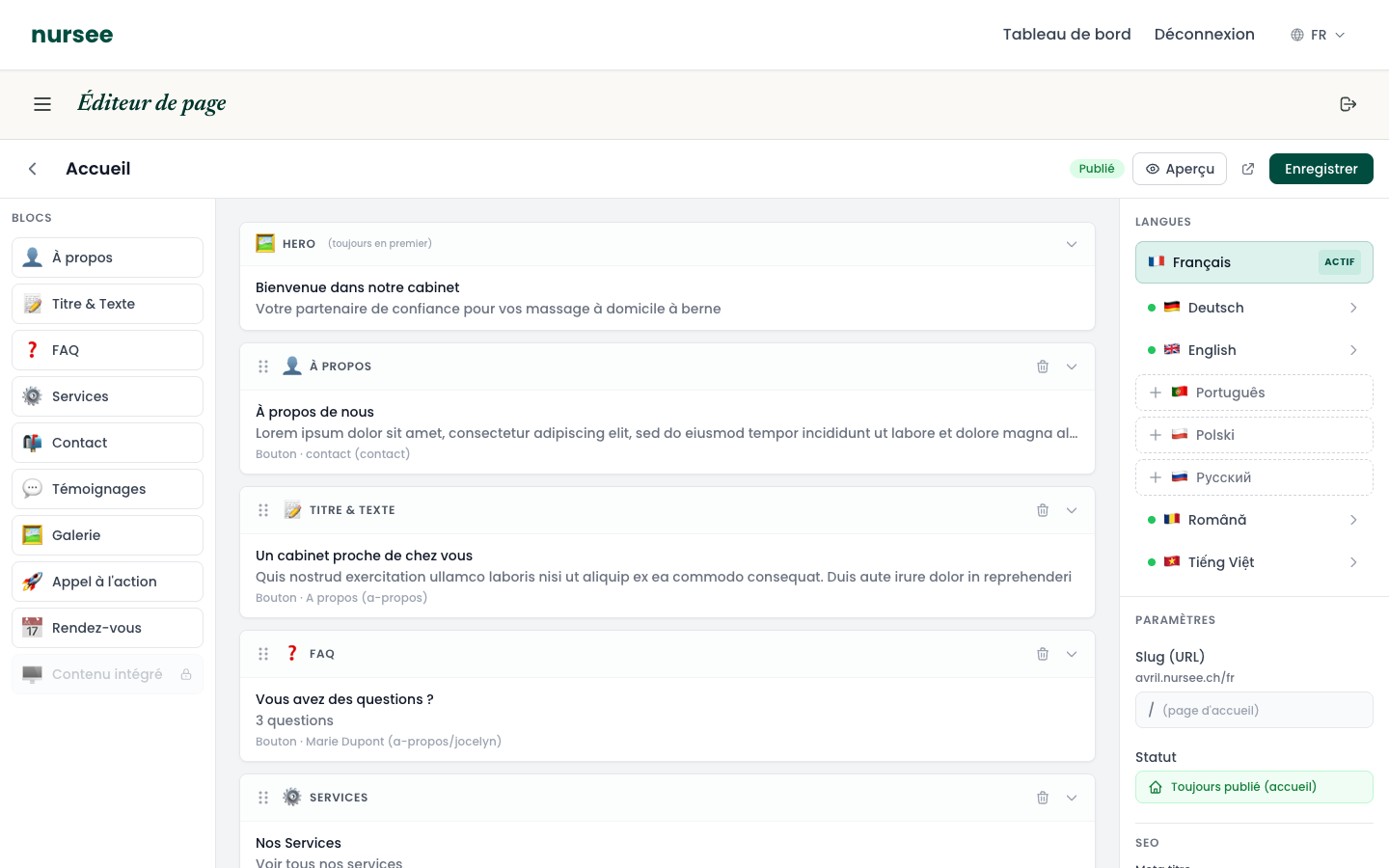
The three areas of the editor
On the left: the list of available blocks
This is your toolbox. Each button is a type of content you can add to the page: About, Title & Text, FAQ, Services, Contact, Testimonials, Gallery, Call to action, Appointments, Embedded content.
To add a block, simply click it. See Understanding blocks.
In the middle: the content of your page
The blocks of the page, stacked in the order your visitors will see them. Each block is a rectangle with its name at the top.
- Click the name of a block to open it and edit its content.
- Click again to fold it away.
- Grab the six small dots to the left of the name to move the block up or down.
- Click the bin to delete the block.
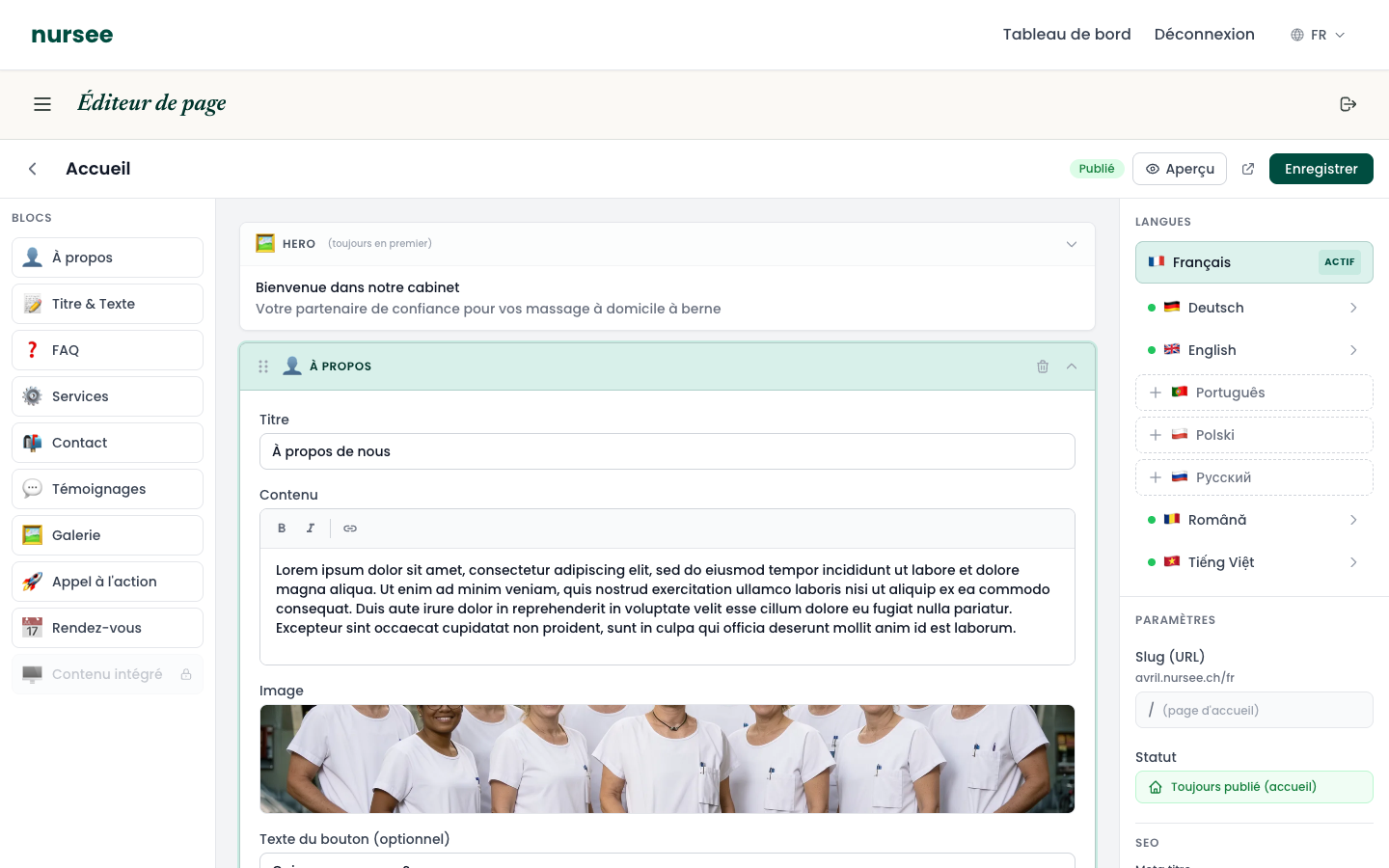
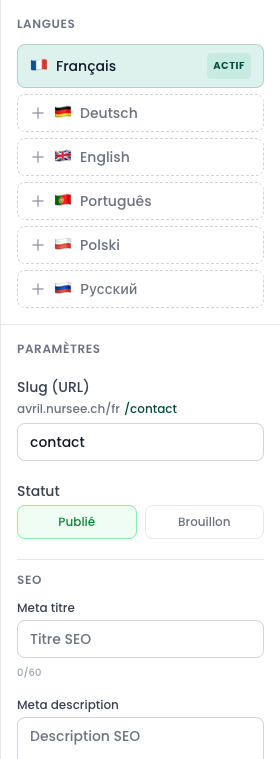
On the right: the settings of the page
This panel holds three sections:
- Languages — to switch between translations. See Translating a page.
- Settings — the slug (the address) and the status (Published or Draft).
- SEO — the title and description Google displays. See Search engines (SEO).
Editing a piece of text
Click the name of the block containing the text.
Click in the field, delete the old text and type the new one, exactly as in an e-mail.
Click « Save », at the top right.
A green message confirms: Page saved successfully.
Seeing the result before saving
The « Preview » button at the top right splits the screen in two: your fields on the left, your site as it will be on the right. The preview updates as you type.
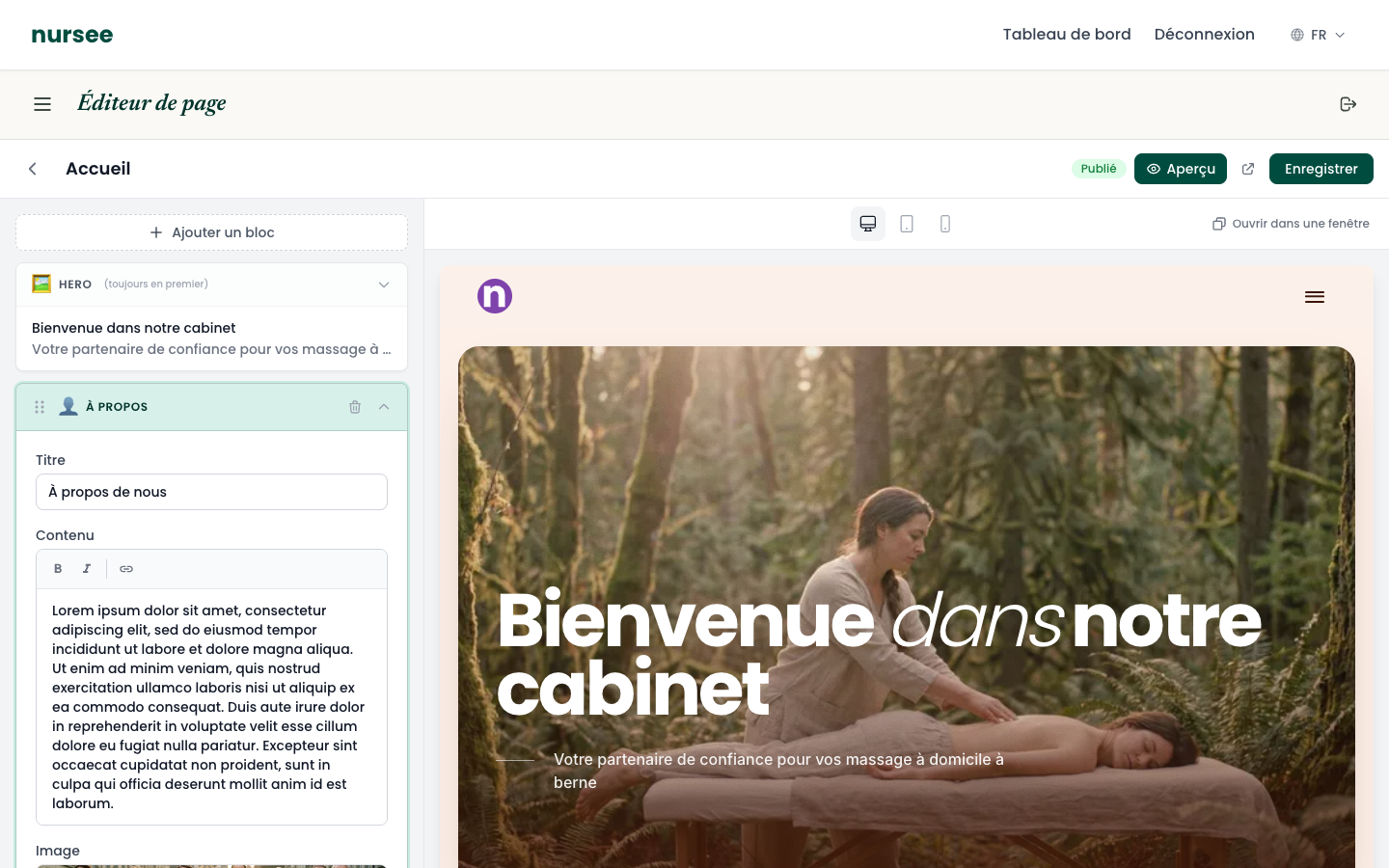
Three small icons at the top of the preview let you check how it looks on desktop, tablet and mobile. Always look at the mobile view: more than half your visitors will arrive on a phone.
Saving: the one rule to remember
Nothing is kept until you have clicked « Save ».
The « Save » button is always at the top right, and it never moves.
Saving is not publishing
These are two different things, and it is the most common confusion:
- « Save » keeps your work. On a draft page, the public still sees nothing.
- « Publish » makes the page visible to everyone.