The pages of your site
Publishing and unpublishing
The difference between « Save » and « Publish », and how to make a page visible or hide it.
In this article
Every page of your website is in one of two states:
- Draft — the page exists, but only you can see it. It does not appear in your site menu and nobody can reach it.
- Published — the page is online. Anyone can see it and it appears in the menu.
You can see the state of each page in the Status column of the page list.
Save or publish?
That is the most frequent question. The answer is simple:
| Button | What it does |
|---|---|
| « Save » | Keeps your work. Changes nothing for your visitors if the page is a draft. |
| « Publish » | Makes the page visible to everyone. |
In other words: saving is for you, publishing is for the public.
Publishing a page
Open the page: Websites → Pages → « Edit ».
Check the content with the « Preview » button. Read your text again.
Click « Save ».
Click « Publish », to the right of the Preview button.
The badge at the top of the editor changes from Draft to Published. The page is online.
Unpublishing a page
You want to take a page off the site without deleting it? A service you no longer offer this season, for instance.
Open the page.
Click « Unpublish ».
The page becomes a draft again. It disappears from your site menu, but all its content is kept. You can republish it later with one click.
Changing the status from the right-hand panel
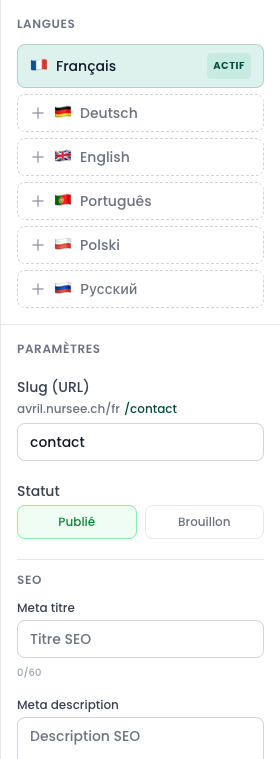
In the editor, the « Settings » section of the right-hand panel holds two buttons side by side: Published and Draft. Click the one you want, then click « Save ». The result is the same.
The special case of the home page
The home page is always published. It cannot be unpublished: without it, your main address would lead nowhere.
In the editor its status simply reads Always published (home).
If you really need to close your whole site for a while — during a holiday, or a complete rebuild — use maintenance mode instead.
My page is published but I cannot see it on my site
Check in this order:
Did you click « Save » after publishing?
Refresh the public page in your browser (
F5, orCmd + Ron a Mac). Your browser sometimes keeps the old version in memory.Is maintenance mode on? Look in Site settings. If it is on, no page is visible.
Is it a page in another language? A page published in German only appears on the German version of your site.