Account, address and subscription
Subscription and plans
Seeing your plan, changing it, understanding the watermark and cancelling.
In this article
The Plans section shows your current plan and the plans available, and lets you change or cancel.
To get there: in the left menu, click Plans.
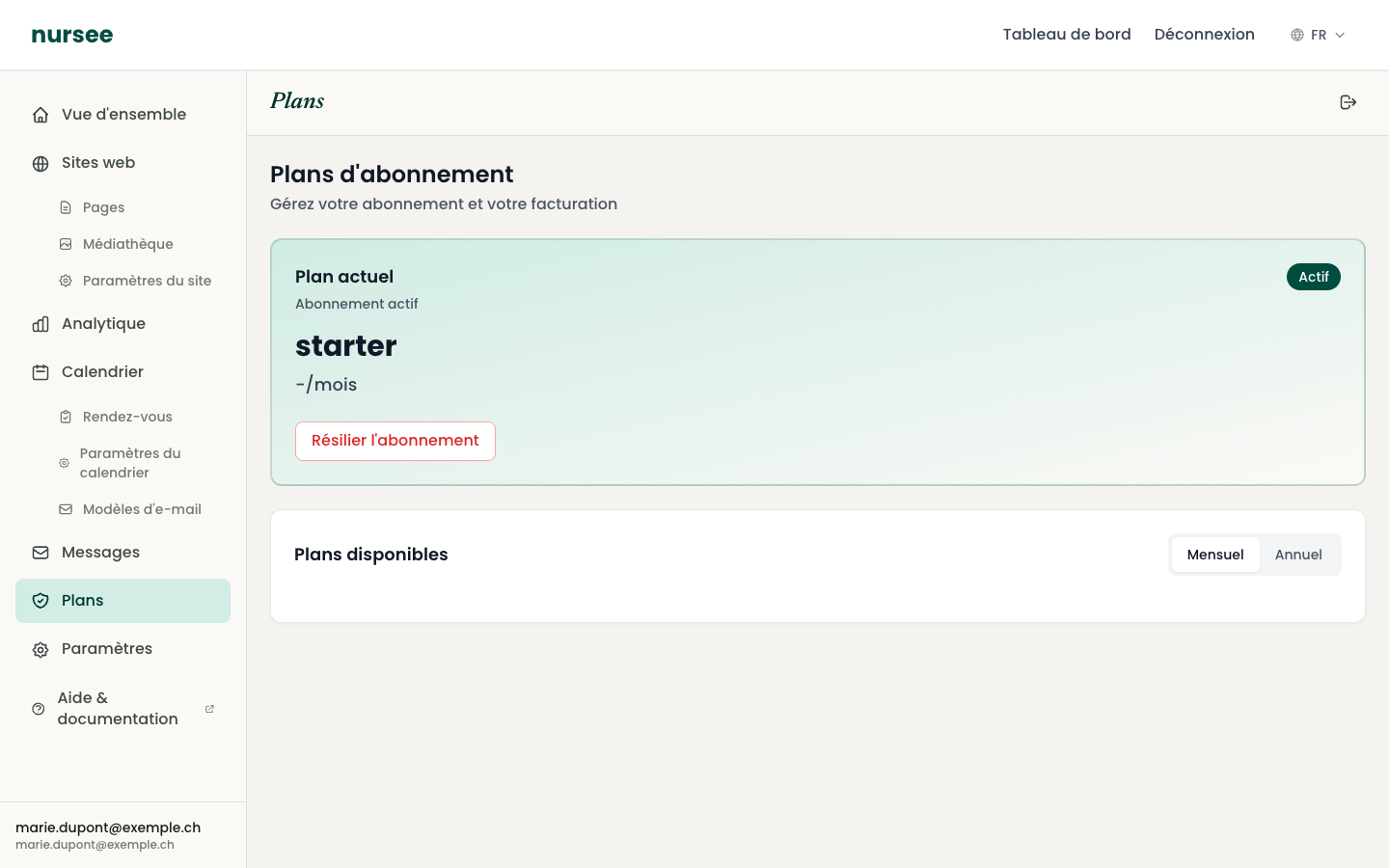
Your current plan
The green box at the top shows the name of your plan, its price, and a status badge:
| Badge | Meaning |
|---|---|
| Active | All is well, your subscription is running. |
| Trial | You are in the trial period. |
| Cancellation scheduled | You have cancelled. Access continues until the date shown. |
Monthly or yearly
The Monthly / Yearly toggle changes the prices displayed. Paying yearly is usually better value — the saving is shown under the price.
What the plan changes
Plans differ mainly on three points:
- the number of pages you can create;
- the storage space for your photos and videos;
- access to the Pro features: a custom domain name and the Embedded content block.
You will see the detail of each plan on its card, in the « Available plans » section.
Subscribing or changing plan
Go to Plans.
Choose Monthly or Yearly.
On the card of the plan you want, click « Subscribe » or « Change plan ».
A window sums up the change. Read it.
Confirm.
Payments are handled by Stripe, a specialist international provider. We never have access to your card number.
The free-mode watermark
If you have no active subscription, you can explore your area and even create a site. A banner at the top of the dashboard reminds you.
In that case, a small nursee watermark appears on your public site. It disappears immediately as soon as you subscribe to a plan. There is nothing to redo.
Cancelling your subscription
Go to Plans.
In the box for your current plan, click « Cancel subscription ».
A window asks you to confirm. Read it.
Confirm.
Undoing a cancellation
Changed your mind? As long as the end date has not passed, a « Reactivate subscription » button appears in your plan box. One click and everything continues as before.
If a payment fails
A red banner appears at the top of your dashboard: Your subscription payment failed.
Stripe retries automatically for a few days. In the meantime, check your payment method: expired card, limit reached, insufficient funds.
Your invoices
Your invoices and receipts are e-mailed by Stripe to your account address. Keep them: they are deductible expenses for your practice.
Storage space
To see where you stand, go to Overview: the « Storage » card shows your usage, for instance 1.37 MB of 1 GB.
If you are getting close to the limit, delete unused images from your media library, or move to a plan with more space.